FROM PREPARATION TO FOLLOW-UP
Keep the document and its next action together.
An offer letter, quotation, or supplier form needs the right fields, a clear recipient task, and a way to follow what remains. Explore how Meteor Sign handles those different parts of the request.
01Prepare the fields before you send
A document needs more than a signature at the bottom.
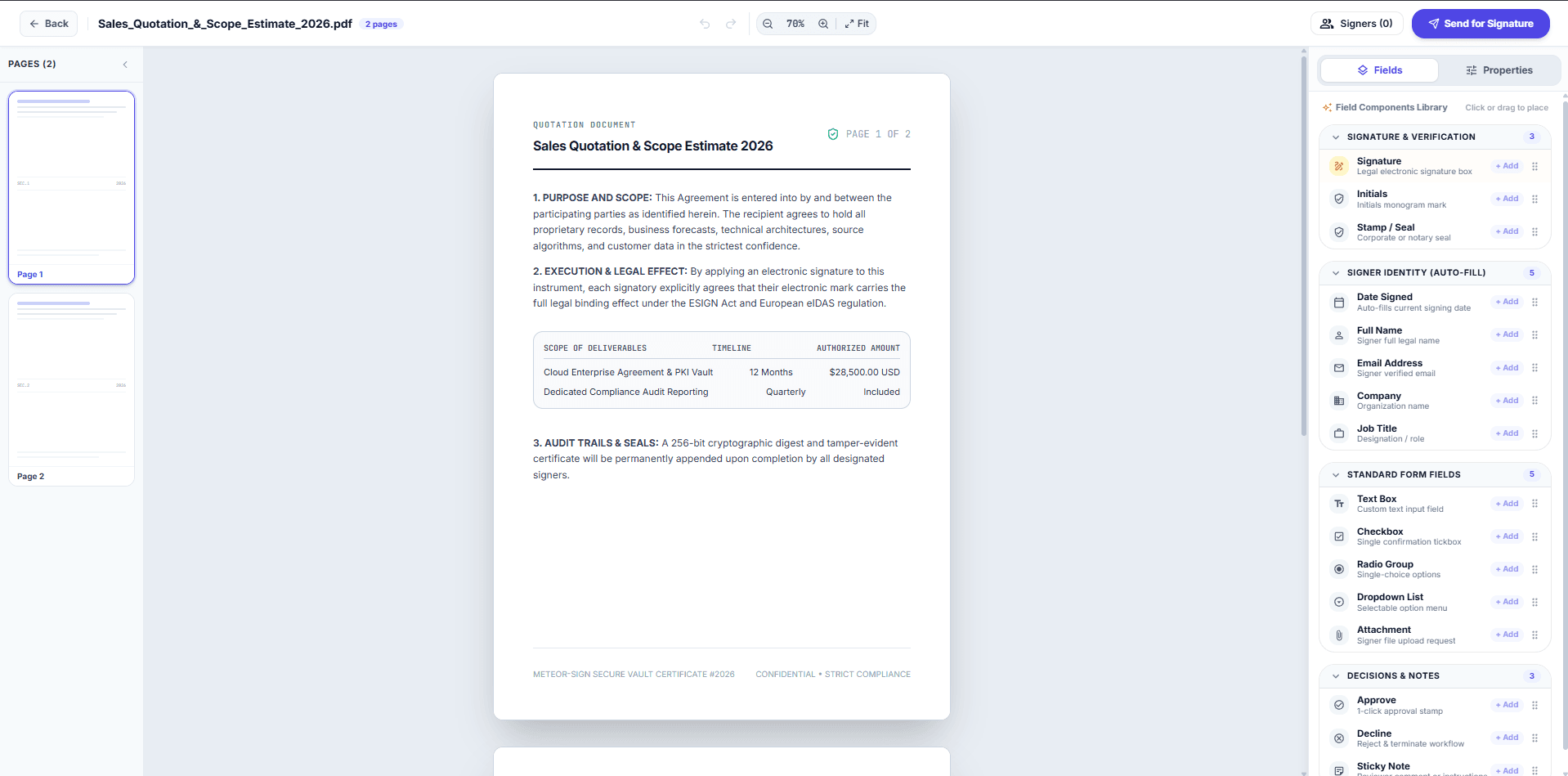
Place signatures, initials, dates, names, text fields, checkboxes, and attachments against the relevant pages. The editor keeps page thumbnails beside the document so you can review the layout before sending.
02Reuse the documents you send regularly
Quotations and offer letters often start from the same structure.
Preview a reusable template, then use it as the starting point for the next request. The template view includes a sales quotation with company, customer, scope, and amount placeholders.
03See which requests still need a response
Sending a document is only the start of the follow-up.
Review sent documents and the Waiting on Others view. Each request shows recipient counts and signing progress, with a Track Signers action for the next level of detail.
04Keep your own signing tasks in view
Some documents need your action rather than someone else’s.
Separate Needs My Signature, Waiting on Others, and completed documents. A document that needs your signature has a Review & Sign action; a completed item offers the signed PDF.
05Find a request without opening every file
A growing document list makes individual requests harder to locate.
Search the tracking view by document title, recipient, or email, and narrow the list with a status filter before reviewing the request.
06Review the activity record
A process owner may need to understand what happened to a request.
The reports view presents event type, envelope reference, actor, and timestamp, alongside an export action. Review the required records, retention, and export format during your walkthrough.